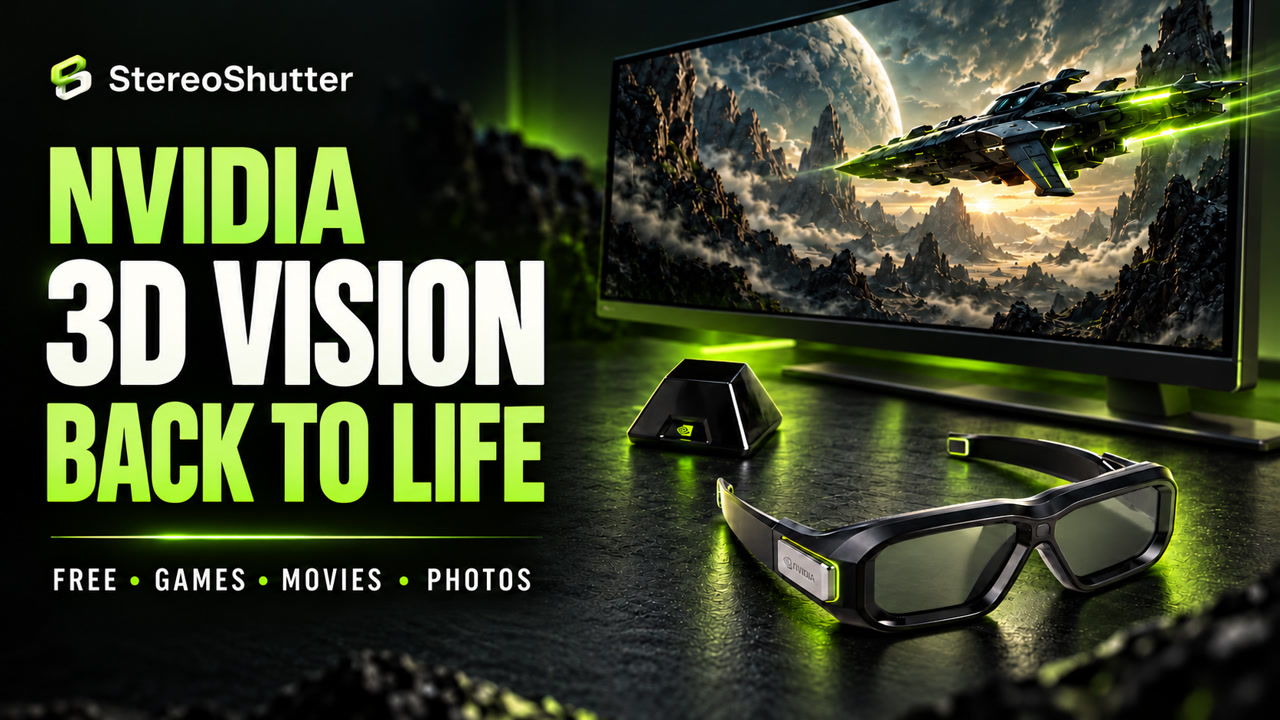
Glasses. Not a headset.
No VR headset on your head. Put on your 3D Vision glasses and enjoy depth on your display.
 StereoShutter
STEREOSHUTTER 0.18.83 · 3D SOFTWARE FOR PC
Bring your NVIDIA 3D Vision glasses back to life for 3D games, movies and photos. Independent freeware for Windows, compatible OLED and LCD monitors, and legacy 3D Vision displays.
Windows 10 / 11 · NVIDIA GPU · 3D Vision glasses & emitter
For games, install the compatible geo-11 fix first: Find my game on HelixMod.
Emitter driver required. Installation instructions on GitHub.
Choosing a GPU · Performance guide
01 / HOW STEREOSHUTTER WORKS
One view for each eye. Suddenly, that world no longer ends at the screen.
StereoShutter presents one image per eye and synchronizes NVIDIA 3D Vision glasses with the monitor. For DirectX 11 games, it needs a compatible geo-11 fix to generate both views.
A compatible fix or integration must supply both eye views. StereoShutter does not turn every game into 3D on its own.
Install the game fix in three stepsFOR 3D GAMES / HELIXMOD + GEO-11
A fix is required: it creates the view for each eye. Find a compatible geo-11 fix for your game on HelixMod; StereoShutter presents those images and synchronizes your glasses.
Find my game on HelixModFind your game on HelixMod, download its geo-11 fix and install it as instructed. Check the required game version, graphics API and geo-11 version: not every HelixMod fix is compatible.
With the game closed, copy the contents of the ZIP’s StereoShutter folder alongside the actual game .exe and the fix, without creating another subfolder. Run StereoShutter_geo-11_Setup.exe there: it connects the installed fix; it does not download it. StereoShutter_Setup.exe calibrates the glasses.
Window and resolution changes during startup are normal. Once the window and resolution remain stable, StereoShutter waits about 5 seconds before activating 3D. The fix generates both views and StereoShutter synchronizes the glasses.
Check requirements and setupStereoShutter does not turn arbitrary games into 3D. StereoShutter Player and Photos do not need a game fix.
These steps are for DirectX 11 with geo-11. DirectX 12 integration through SLT12 Output is not publicly released yet or included in the download.
THE GAME FEELS CLOSER.
Put on your glasses. Pick up your controller. Some worlds deserve another perspective.
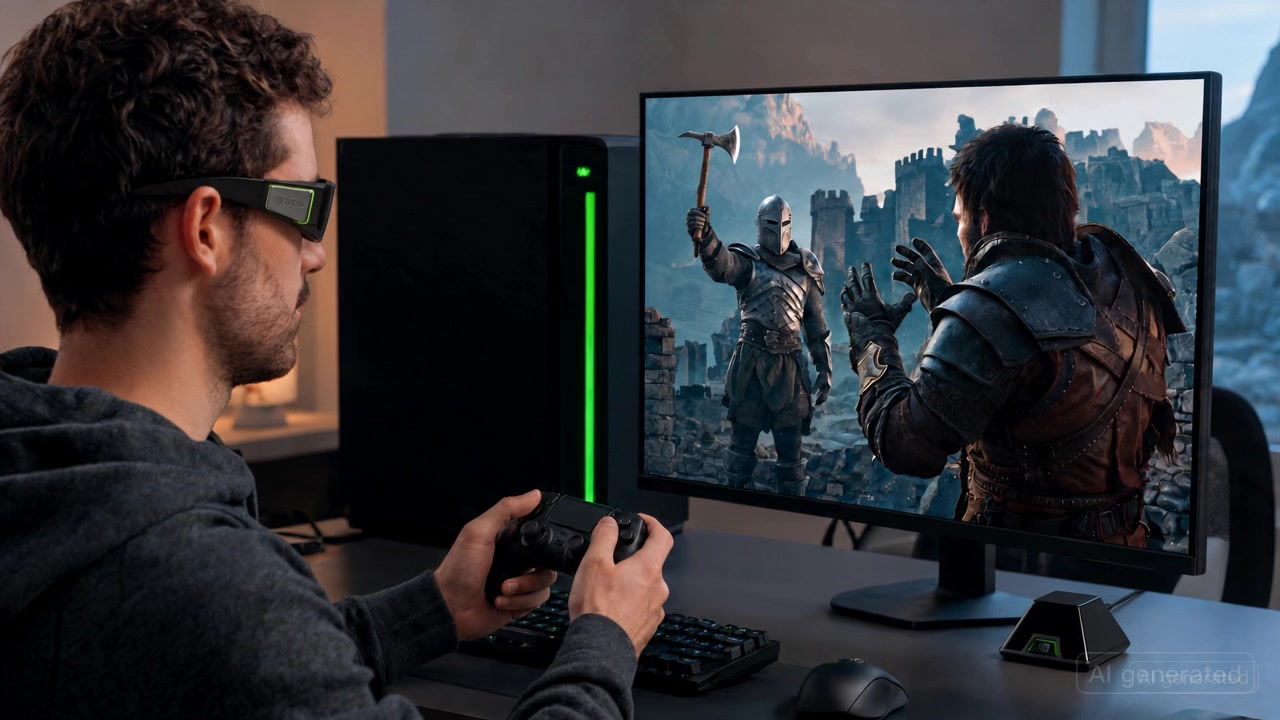
MONITOR 3D. NO VR HEADSET.
No VR headset on your head. Put on your 3D Vision glasses and enjoy depth on your display.
Enjoy its definition, colour and compatible HDR. Choose the resolution and picture settings that suit your setup.
Play seated with a controller or keyboard and mouse. No tracked play area to prepare and no need to change your usual controls for 3D gaming.
A different experience from virtual reality: stereoscopic depth on your display, with your familiar way to play. Clarity and performance depend on the monitor, resolution and game.
02 / YOUR DISPLAY. YOUR DIMENSION.
Compatible OLED and LCD monitors, certified displays from NVIDIA’s original 3D Vision lineup, and Surround. Compare expected clarity by refresh rate and panel type.
60 cycles as supplied at 360 Hz; 90 optional. At 240 Hz, 60 cycles. Black intervals separate the images; calibration balances light and eye separation.
PC monitors · Compatibility depends on refresh rate, response and strobing
Check monitor compatibility →For the cleanest 3D, we recommend OLED at 240 or 360 Hz, or NVIDIA 3D Vision with LightBoost. Other modes and panels can work with more ghosting: see the table. Conceptual illustrations.
3D Vision and 3D Vision Surround: Official NVIDIA documentation (legacy).
Historical reference, not an up-to-date monitor catalogue. For StereoShutter installation, follow the guide on GitHub.
MORE THAN A REFRESH RATE
StereoShutter uses the refresh rate selected in Windows. Clean 3D depends on eye separation and the panel’s actual response. If a pixel has not finished changing, a faint copy of the other eye’s image can remain: ghosting or crosstalk.
For the cleanest 3D: an OLED at 240 or 360 Hz, or an NVIDIA 3D Vision monitor with LightBoost.
View display modes and tested configurations →
Swipe the table to compare all panel types →
| Windows refresh rate / mode | Stereo cycles/s | OLED < 0,1 ms | Fast LCD≈ 1 ms | LCD 2–4 ms | Slow LCD> 4 ms |
|---|---|---|---|---|---|
| 360 HzWith black refreshes | 60 · 90 optional | ✅ Clean (tested) | ⚠️ Mild ghosting | ⚠️ Visible ghosting | ❌ Heavy ghosting |
| 240 HzWith black refreshes | 60 | ✅ Clean | ✅ Clean | ⚠️ Visible ghosting | ❌ Heavy ghosting |
| 99–185 HzWith the monitor’s own strobingULMB · ELMB · DyAc… | Half the refresh rate | ✅ Clean (tested at 180 Hz) | ✅ Clean | ⚠️ Depends on strobing | ⚠️ Depends on strobing |
| 99–185 HzWithout the monitor’s own strobing | Half the refresh rate | ❌ Heavy ghosting (tested) | ❌ Heavy ghosting | ❌ Heavy ghosting | ❌ Heavy ghosting |
| NVIDIA 3D VisionCertified monitor · LightBoost | Half the refresh rate | — | ✅ Clean (tested) | — | — |
✅ Clean or nearly clean · ⚠️ Works, with some ghosting · ❌ Heavy ghosting: not recommended
“Tested” means practical observations within the project, not every monitor model on the market. Other results are expectations based on panel response times. Starting the glasses does not guarantee clean 3D.
StereoShutter inserts a black refresh between the eyes’ images: around 2.8 ms at 360 Hz and 4.2 ms at 240 Hz. The pixel must complete its transition in that interval to avoid leaving a trace.
Check independent measurements. An advertised “1 ms” is usually grey-to-grey with overdrive; a full transition to black and back can take longer. The setup assistant adjusts lens opening time: shorter openings reduce ghosting, but also brightness.
OUTPUT MODES · 0.18.83
StereoShutter chooses its mode from your monitor and the refresh rate selected in Windows. It does not change that refresh rate: select it before starting.
Swipe to see each mode’s sequence, cycles and tested configurations →
| Mode | Windows refresh rate | How each eye is presented | Stereo cycles/s | Tested at |
|---|---|---|---|---|
| NVIDIA 3D Vision | The rates in NVIDIA’s timing table for that monitor; for example, 120 and 144 Hz | One refresh per eye, with LightBoost | Half the refresh rate120 Hz → 60 | 120 Hz, including NVIDIA Surround |
| One refresh per eye | 99–185 Hz100 · 120 · 144 · 165 · 180… | One refresh per eye. The monitor’s own strobing (ULMB, ELMB…) separates the eyes; without it, ghosting occurs. | Half the refresh rate144 Hz → 72 180 Hz → 90 | 180 Hz, OLED with its own strobing |
| Two refreshes per eye | 198–370 Hz200 · 240 · 280 · 300 · 360… | Image, then one black refresh | One quarter of the refresh rate240 Hz → 60 360 Hz → 90 | 360 Hz, OLED |
| Three refreshes per eyeDEFAULT | 297–370 Hz | Image, image, then one black refresh | One sixth of the refresh rate360 Hz → 60 | 360 Hz, OLED |
| Other refresh rates | Below 99 Hz, from 186 to 197 Hz, and above 370 Hz | Unsupported: the glasses do not start | — | — |
Other refresh rates within each range work the same way by design, but have not been tested on a physical monitor. “Tested at” lists only the configurations actually checked.
From 297 to 370 Hz, three refreshes per eye are used by default. To select two—more cycles and smoother motion if the game keeps up—open “Settings for this game” (Ctrl+Alt+K twice) → “Glasses cycles”. For all games, set this in StereoShutter.ini:
[BFI]
refreshes_per_eye = 2
Important: NVIDIA 3D Vision monitors only work at the refresh rates and resolutions in their NVIDIA timing table. The other modes’ ranges do not override this restriction.
3D Vision Surround requires three NVIDIA-certified 3D Vision monitors and LightBoost timings prepared with the included tool. TVs are not part of the advertised compatibility.
The mode defines the sequence; 3D clarity depends on the panel. Check monitor compatibility ↑
360 HZ OLED / CHOOSE HOW IT FEELS
60 cycles as supplied: more image time and a cadence focused on stability. Optional 90 cycles for games that sustain that pace.
01 / 60 CYCLES · AS SUPPLIED
At 360 Hz, the supplied settings use 60 cycles, with glasses at 120 Hz. Each eye receives two image refreshes and one black: more image time and a lower target than sustaining 90 pairs per second.
2 out of 6 refreshes, rather than 1 out of 4. This is a timing ratio, not a brightness measurement: perceived light depends on the panel and lens opening time.
02 / 90 CYCLES · OPTIONAL
90 cycles with glasses at 180 Hz for games that sustain 90 FPS. Each eye receives one image refresh and one black. Select it per game; it is not the supplied setting.
03 / THE TIMING
Coordinated image and black-interval delivery, emitter recovery after certain interruptions, and configurable GPU priority to protect presentation. Designed to reduce losses of synchronization.
Separate calibrations for 60 and 90 cycles, with dedicated settings for the game, setup assistant and HDR. Your settings stay where they belong.
Compare the sequences60-cycle mode for compatible OLED displays at 360 Hz. It does not change how certified 3D Vision monitors operate. Stability depends on your hardware, driver and game; flicker-free operation is not guaranteed. A 60-cycle period lasts 16.67 ms, versus 11.11 ms at 90: equal latency is not promised.
EACH EYE. AT THE RIGHT TIME.
At 360 Hz, 60 cycles are supplied: two image refreshes and one black per eye. Optional 90 cycles use one image and one black per eye. At 240 Hz, the cadence stays at 60 cycles.
To select 90 per game: open “Settings for this game” (Ctrl+Alt+K twice) → “Glasses cycles”. For all games: [BFI] refreshes_per_eye = 2 in StereoShutter.ini; the supplied value is 3 (60 cycles at 360 Hz). These website buttons only change the illustration.
120 Hz · glasses alternation
Illustrative sequence, without flashing. This is not a display measurement or a promise of in-game FPS.
ADAPTIVE SYNCHRONIZATION
Stability when a scene demands more. Responsive control when every movement counts.
The package automatically enables presentation headroom, GPU priority and reserved capacity when the game saturates the GPU. Game frames are paced to the glasses’ cycles.
Increases presentation headroom when images arrive late and remembers the setting for that game.
Coordinates game frames with the glasses’ cycles and adapts the pace when the game cannot keep up.
3D output receives extra GPU priority when its images are about to arrive late, then returns to the game’s priority.
When a game saturates the card, StereoShutter reserves capacity to keep 3D output on time. It remembers the setting for that game.
The three automatic modes (headroom, priority and reserved capacity) are enabled in StereoShutter 0.18.83. They do not increase game FPS: a saturated GPU may still need lower graphics settings or an FPS limit. The glasses still need to be configured and calibrated.
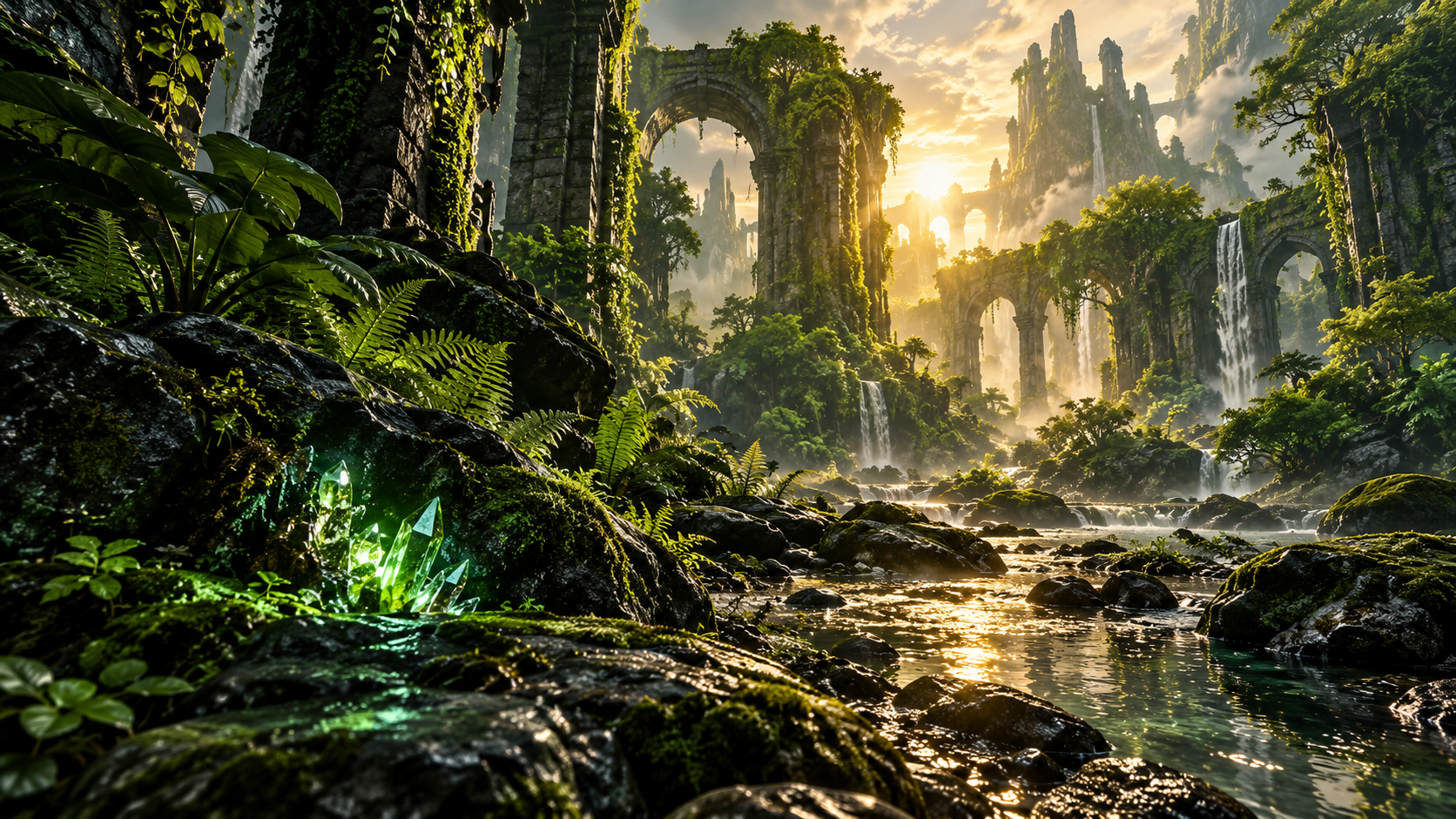
03 / STEREOSCOPY AND HIGH DYNAMIC RANGE
Depth, light and colour on your PC’s OLED monitor.
The depth of 3D with the highlights, shadows and HDR colour of your game. StereoShutter presents both eye views in native HDR and synchronizes your NVIDIA 3D Vision glasses.
Control brightness, highlights, shadows and colour from the integrated panel.
HDR requires a compatible HDR monitor and a suitable 3D output mode. Native HDR needs compatible content and integration; increasing SDR brightness does not make it native HDR. TVs are not part of the advertised compatibility.
ONE MONITOR. TWO USES OF HDR.
HDR output can be used with both SDR games and games with native HDR. The difference is the image supplied by the game, not simply whether Windows HDR is enabled.
WINDOWS HDR ON · GAME IN SDR
The game retains its SDR image. StereoShutter uses the OLED’s HDR output to increase its luminance and compensate for light lost through the glasses.
Its own brightness and nit settings, independent of the profile for HDR games.
WINDOWS HDR ON · IN-GAME HDR ON
The game supplies an HDR image for each eye. StereoShutter presents its high dynamic range alongside stereoscopic depth, with brightness, highlight, shadow and colour controls to adjust the image to your preference.
A separate brightness and nit profile: your SDR settings do not replace those for native HDR.
The profile follows the input signal recognised by StereoShutter: SDR or HDR10/scRGB. Settings saved from the panel are stored in the corresponding profile.
The OLED brightness boost serves a similar purpose to LightBoost, but works through software: it does not activate the monitor’s NVIDIA LightBoost technology.
THE STEREOSHUTTER HDR PANEL
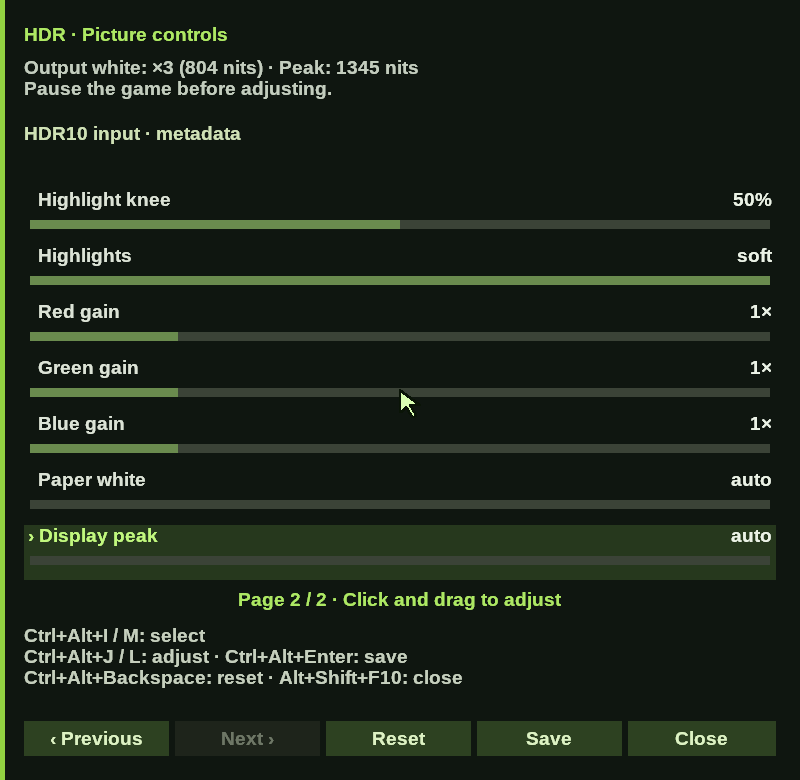
Explore both pages of the picture panel: adjust light, reveal shadow detail and balance colour. SDR brightness boost and native HDR keep independent settings.
Visual simulation using an SDR image, not a demonstration of real HDR. It does not enable HDR or change your monitor, games or StereoShutter. Nits are example values, not a measurement of your display.
Actual application captures, not recreations. Select an image to enlarge it.
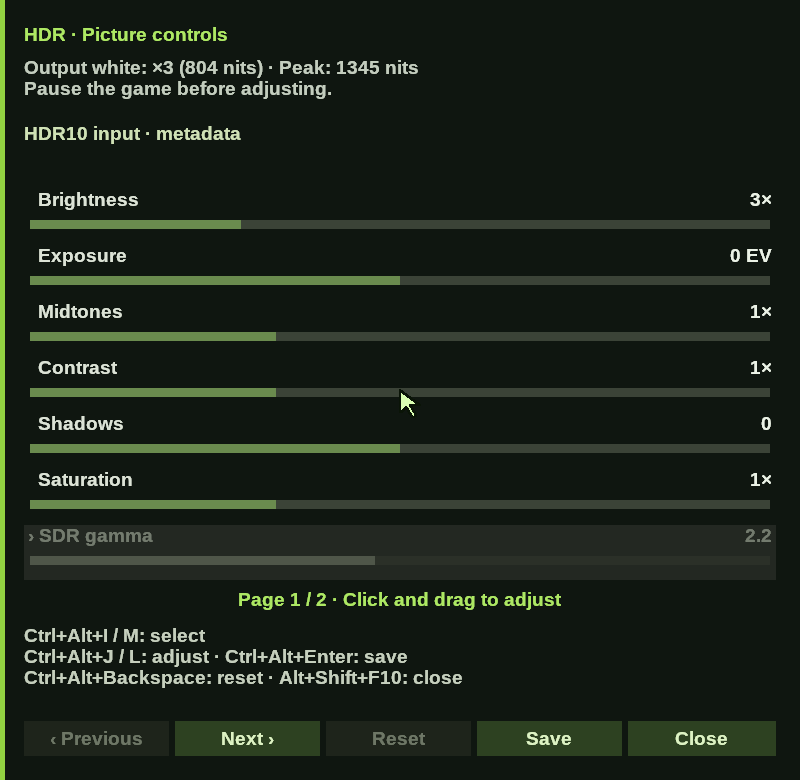
Brightness, exposure, midtones, contrast and shadows. Tune luminance and scene detail with dedicated controls.
Saturation, red/green/blue balance and highlight handling. SDR gamma is reserved for SDR content.
Reference white and output peak, with automatic or manual values. These settings do not increase your monitor’s physical capability.
Alt + Shift + F10 Open the HDR panel while HDR output is activeCtrl + Alt + Enter Save adjustments
In the application, pause your game before adjusting. Inapplicable controls are disabled: SDR gamma does not apply to native HDR. “Reset” restores the selected control only.
BUILT TO PLAY. READY TO TUNE.
 01
A guided assistant for phase, eye order and lens opening time. Profiles for each display mode, with separate HDR adjustments.
 02
Fullscreen or borderless with compatible integrations. Toggle 3D, swap eyes and adjust brightness with keyboard shortcuts.
 03
An independent emitter stop watcher and LightBoost and Surround recovery tools. With documentation to help you restore your setup.
04 / PREPARE YOUR NEXT SESSION
Prepare your PC, monitor and glasses for 3D games, movies and photos.
Works alongside the current NVIDIA graphics driver. No discontinued 3D Vision graphics driver required; the emitter’s USB driver is still needed.
Three settings. The rest is automatic.
At every start, StereoShutter configures only its own profile: low latency off, no FPS caps (including background), its own V-Sync and maximum performance. Your games and global V-Sync stay as they are.
If the profile fails, or global Ultra or G-SYNC affects its output, it warns you. Automatic by default: StereoShutter.ini → [Output] nvidia_profile = yes.
VIDEO GUIDE · 4:26 MIN
See how to install a geo-11 fix, connect StereoShutter and calibrate your glasses. The full setup, step by step.
English video · 2D setup guide. YouTube loads only when you press play.
PC monitors · Compatibility depends on refresh rate, response and strobing
Check monitor compatibility →TWO EYES. GPU HEADROOM.
The game and its fix generate a view for each eye. This adds rendering work; StereoShutter also needs headroom to present both on time. The cost is not always twice as high, and 2D frame rates do not guarantee 3D performance.
Version 0.18.83 guidance for high settings in most games. Tested with an RTX 4090; other cards are estimates based on published benchmarks, not tests of those cards with StereoShutter. These are not mandatory minimums or FPS guarantees.
| Monitor resolution | 60 cycles/s | 90 cycles/s |
|---|---|---|
| 1920×1080 · including 3D Vision | RTX 3070, 4060 Ti, 5060 or better | RTX 4070 Super, 5070 or better |
| 2560×1440 | RTX 3080 Ti, 4070 Super, 5070 or better | RTX 4090, 5080 or better |
| 3440×1440 | RTX 4070 Ti Super, 5070 Ti or better | RTX 4090*, 5090 |
| 3840×2160 | RTX 4090, 5090 | — |
60 cycles: 120, 240 and 360 Hz (as supplied). 90 cycles: 180 Hz, or 360 Hz when selected. At 144 and 165 Hz (72 and 82.5 cycles), between the two columns. At 99–185 Hz, check strobing and ghosting in the compatibility table.
A lower-tier card can work at lower settings; the heaviest games can need more. At 4K, this guide does not recommend a card for 90 cycles with headroom. Films and photos need much less.
* With RTX 4090, most games hold 90; some dip in their heaviest scenes.
To use every cycle, aim to deliver 60 or 90 new pairs per second with regular frame times. You do not need 240/360 game FPS. When fewer pairs arrive, they can be repeated: output must keep its cadence. Falling below 60/90 FPS does not, on its own, mean losing 3D.
The table follows the recommendations in the 0.18.83 package. Only the RTX 4090 has been tested with StereoShutter; the other cards are estimates. NVIDIA specifications do not measure this application's frame rates.
Guide reviewed on 11 October 2026. Performance depends on the game, fix, driver and settings. The Single Pass Stereo reference explains a general technique, not a StereoShutter implementation.
Install the game’s compatible geo-11 fix first, following its instructions. Then StereoShutter_geo-11_Setup prepares the connection and can undo it; it does not download or install the fix.
DirectX 12 / SLT12 OutputIntegration with SLT12 Output. Not publicly released yet, and not included in the download.
STEREOSHUTTER PLAYER / 1.0.2
SBS, TAB and Blu-ray 3D movies with NVIDIA 3D Vision glasses.
StereoShutter Player is a free 3D video player for Windows. Play stereoscopic videos, unencrypted Blu-ray 3D ISO files and folders, or capture a window showing 3D content. Drag a file onto the executable to play it.
 YOUR GLASSES. YOUR MONITOR. YOUR CINEMA.
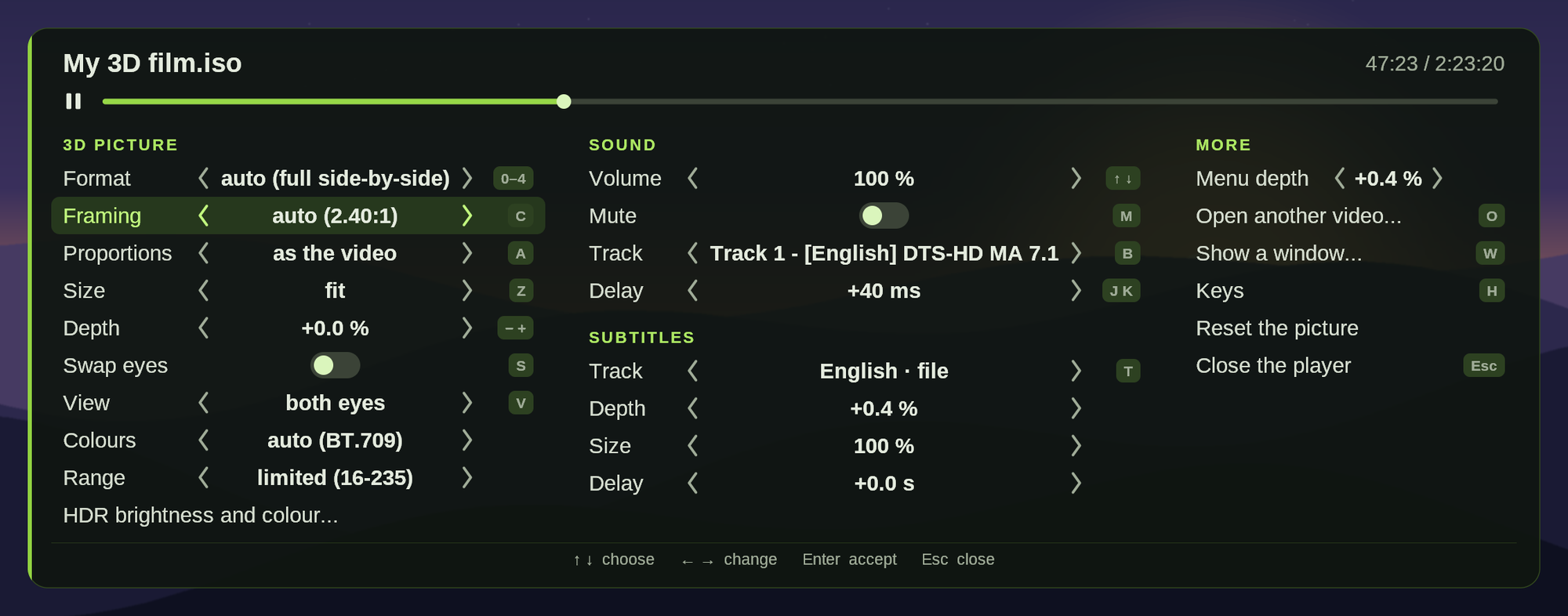
Half or full side-by-side and top/bottom. Unencrypted Blu-ray 3D from an ISO or folder, at 1920 × 1080 per eye. Automatic detection and manual selection.
Menus, playback controls and subtitles in both eyes, with adjustable depth. Mouse control, audio tracks, synchronization and framing to suit your display.
Open a video, drop it onto the executable or select a window with unprotected 3D content. Available in seven languages. No game fix required.
Blu-ray 3D plays from the film’s start, with the timeline and external subtitles following the 3D images, including after a seek.
ILLUSTRATED MANUAL / PDF
Installation, formats, controls and troubleshooting in a downloadable guide.
English manual · PDFSpanish manual · PDFSTEREOSHUTTER PHOTOS / 1.0.2
MPO, JPS, PNS and SBS photographs with your 3D Vision glasses.
StereoShutter Photos is a stereoscopic image viewer for Windows. Open pictures from your 3D camera, browse a folder or enjoy a slideshow, with adjustable depth and mouse controls.
 MPO · JPS · PNS · SBS · TAB
MPO, JPS, PNS and side-by-side or top/bottom pairs, at half or full resolution. Automatic format detection with manual selection when needed.
Adjust depth, swap eyes and zoom up to 16×. Pan with the mouse and switch between fitting the image or filling the screen from the stereoscopic menu.
Drop a photo or folder onto the executable. Browse with the arrow keys or start a slideshow with an adjustable interval. No game fix or VLC required.
With the glasses configured, drop a photo onto StereoShutter_Photos.exe or try the three pictures in the Samples folder. Right-click opens the menu; Space starts the slideshow and Esc closes the session.
Photos are presented in SDR. On a compatible OLED, StereoShutter’s HDR output can boost their brightness. This is not native photographic HDR or 2D-to-3D conversion.
FOR WINDOWS · FREEWARE
Games, a video player and a photo viewer. Download the latest stable version directly as a ZIP.
Includes Player 1.0.2, Photos 1.0.2 and Feedback 0.18.77. English and Spanish manuals.
Latest stable version · Free ZIP · Direct download.
Read the installation manual72ab865ac010c3f48a0187377daa0268fc71fb8723b2d5db457299bf056492c7THE STEREOSHUTTER PACKAGE
StereoShutter 0.18.83 · Player 1.0.2 · Photos 1.0.2
Three folders for games, video and photos. Player and Photos include their own StereoShutter copy; all use 60 cycles at 360 Hz as supplied. Each application has an illustrated manual in English and Spanish.
The StereoShutter manual covers installation, geo-11, calibration, HDR and how to resolve on-screen messages.

STEREOSHUTTER FEEDBACK / 0.18.77
Send the file, saying what happened and when, to info@stereoshutter.com.
Records only that session and sends nothing automatically. Reports may contain local paths and game names: review them before sharing. Game reports are disabled in the package until you request them.
BEFORE YOU PUT ON THE GLASSES
Yes. NVIDIA ended support for 3D Vision in its graphics drivers in 2019. StereoShutter brings the glasses back into use through its own stereoscopic output. It is an independent project, not an official update to the original system.
You can use first- or second-generation NVIDIA 3D Vision glasses with a USB emitter and its driver. Passive cinema glasses are not enough.
No. For DirectX 11 games, install a compatible geo-11 fix from HelixMod first. StereoShutter presents both views and synchronizes the glasses; its setup tool does not download or install the fix.
StereoShutter presents 3D and synchronizes your glasses. Games need a compatible fix or integration; StereoShutter Player plays video and StereoShutter Photos opens photographs. Neither the player nor the photo viewer needs a game fix.
No. At 360 Hz, the supplied setting is 60 stereo cycles with six refreshes per cycle; optional 90 cycles use four. At 240 Hz, it is 60 cycles. Repeating an image does not create new frames. A cycle lasts 16.67 ms at 60 and 11.11 ms at 90: the latency is not identical.
Yes, where the game, display and integration support it. In geo-11, the compatibility mode can handle the Fullscreen option using a borderless window. DirectX 12 support depends on its integration; SLT12 Output has not been publicly released yet.
StereoShutter is freeware by murdavs, with its own licence and private source code. It is not made, endorsed or maintained by NVIDIA. Read the licence before redistributing it.
STEREOSHUTTER · ON DISCORD
Announcements, help with your setup, and experiences with games, films and photos. A dedicated space for StereoShutter, alongside the existing 3D Vision and geo-11 communities.
The server is in English. Public help is open to everyone: no membership needed.
 Join Discord
Do not post diagnostic reports or personal information in public channels. Use the contact email to send them privately.
info@stereoshutter.comAN INDEPENDENT PROJECT BY MURDAVS
StereoShutter is free. Your contribution helps dedicate more time to development and compatibility testing for 3D games, movies and photos.

Voluntary support through Ko-fi. The stable version of StereoShutter is free.
MEMBERSHIPS · ON KO-FI
StereoShutter is free and will stay free. A membership helps keep it going and bring it to more monitors, glasses and games, and you get to try what is new before anyone else.
3 €a month
5 €a month
Everything in Support.
10 €a month
Everything in Beta.
Memberships are open on Ko-fi. Choose Support, Beta or Priority and help StereoShutter grow.
Beta builds are offered when available, two to four weeks before their public release; a new beta every month is not promised. The monthly development note continues even when there is no new release.
Priority includes one setup review per person per month, not a guaranteed code fix or a fixed reply time. Reports will be shared privately, not in a shared channel.
Appearing in the supporters list will be optional. We will not publish your name without your consent.
COMMUNITY GOAL · KO-FI
This goal funds the purchase of an NVIDIA 3D Vision monitor with a built-in emitter for development and testing. Buying one will let us investigate whether support is possible.
Built-in emitters do not currently work with StereoShutter. This goal covers the monitor purchase, not guaranteed compatibility. Testing may not lead to a working solution, and no release date is promised.
SAME PASSION. ANOTHER DIMENSION.
Bring your NVIDIA 3D Vision glasses back. StereoShutter takes it from there.
Download StereoShutterFree stable version · Manuals included · Proprietary licence.